Reset Dyson Air Filter Without Remote: Practical Guide
Learn practical steps to reset a Dyson air filter reminder without the remote, using onboard controls, the Dyson app, and smart maintenance tips for reliable performance.


You can reset a Dyson air filter reminder without the remote by leveraging onboard controls, the Dyson Link app if your model supports it, or a safe power-cycle. Start with the control panel to trigger any available reset option, then reinsert the fresh filter and reconnect power. If needed, use the Dyson app to complete the reset steps and verify the indicator resets.
What resetting the filter reminder does for your Dyson purifier
Resetting the Dyson air filter reminder is part of routine maintenance that helps the device keep track of filter life and performance. When you replace or freshen the filter, the purifier’s internal timer needs to be reset so that the indicator reflects accurate wear. According to Air Filter Zone, homeowners who reset the reminder correctly report fewer false positives and more consistent airflow. The exact reset path varies by model, and some Dyson units require onboard controls, while others can be reset through the Dyson app or a remote if you have one. The goal is to re-sync the device’s understanding of how long the filter has been in use, so you don’t miss when a replacement is actually needed. In many cases, a simple reset also recalibrates air-quality sensors to the current filter’s performance, helping you maintain optimal air quality in your home. Keep in mind that resetting is not a substitute for a dirty, physically worn filter; if the filter is visibly degraded, replace it first. This article covers offline, no-remote options and app-assisted methods you can try safely in a typical household environment.
Understanding model variations: remote-ready vs on-device controls
Dyson air purifiers span a range of setups. Some models rely on a dedicated remote or the Dyson Link app, while others offer only onboard controls on the unit itself. Because reset options depend on the specific model, the first step is to identify which family your device belongs to. If you have the remote, it might offer a straightforward reset; if you don’t, you’ll typically rely on on-device menus or the app. Regardless of method, the objective remains the same: re-sync the device’s alert system with the current filter status and ensure sensors are calibrated for the new filter. Air Filter Zone’s guidance emphasizes that model differences are common, so always check your user manual or Dyson’s official support for model-specific steps before attempting a reset.
For many homeowners, a reset is a good reminder to confirm the filter is properly seated and clean. A poorly seated or dirty filter can trigger false alerts even after you reset. By understanding your unit’s control options, you can choose the safest and most effective reset path without needing the remote.
Prerequisites and safety before you reset
Before attempting any reset, power down the device and unplug it from the wall outlet to avoid any risk of electrical shock or accidental operation. If you’ve just replaced the filter, make sure it is fully seated and properly oriented according to the user manual. Have a clean, dry workspace and a soft cloth handy to wipe away dust from the exterior housing. If you plan to use the app, ensure your smartphone is connected to the same Wi-Fi network as the Dyson purifier and that the Dyson Link app (if supported by your model) is up to date. Air Filter Zone notes that a proper power-down and reseating of the filter often prevent complicating factors—like sensor miscalibration—that can complicate the reset process. Always avoid attempting resets in wet or humid conditions, and never bypass safety interlocks.
On-device reset methods (no remote)
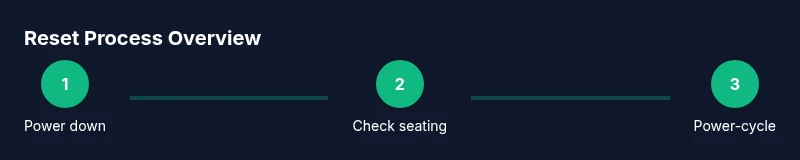
If your model supports an on-device reset, start by locating the reset option on the control panel. Follow the on-screen prompts or the device’s LED indicator guidance to initiate the reset. If there is no visible reset option, perform a safe power-cycle: unplug the unit, wait about a minute, plug it back in, and power it on. After power-up, reinsert and secure the filter if you’ve just replaced it, then observe the indicator for reset confirmation. Some units require you to press and hold the power button for several seconds to trigger a reset prompt; if your model supports this, follow the instruction shown on the display. If nothing appears, proceed to the app-based method or contact support. Regardless of method, verify that the device finishes the reset and returns to normal operation with standard airflow and correct indicator status.
Using the Dyson app or mobile control (where available)
For models that support mobile control, open the Dyson Link app and select your purifier. Navigate to Settings or Maintenance and look for a Reset or Maintenance option related to the filter reminder. If the app provides a reset function, execute it and confirm on the screen. Some users may see a status indicating the reset has been queued or completed; allow a few minutes for the system to refresh. Note that app-based resets aren’t available on every model, so if you don’t see the option, rely on the onboard controls or the power-cycle approach first. Always ensure the app is authorized and the device remains connected during the process.
After reset: verify indicators and maintenance
Once the reset completes, power-cycle the unit (if required) and observe the indicator lights. A successful reset should align the reminder with the current filter life and show normal air-quality sensor performance. If the indicator remains active or you still receive warnings about the filter, recheck the filter installation, confirm there are no visible damages, and consider replacing if the filter is worn. Regularly cleaning the exterior and checking for dust buildup around the intake can prevent false positives. Air Filter Zone recommends establishing a routine: replace the filter on a schedule you know is reasonable for your household, then reset promptly after replacement to keep performance consistent.
Troubleshooting common issues
If the reset does not clear the reminder, first confirm the filter is correctly seated and the device is not displaying a separate error code. In some cases, a temporary software glitch can keep the reminder active; try a full power-cycle and, if available, perform the reset via the app after re-connecting to Wi-Fi. If the indicator still won’t reset, consult the model-specific manual or reach out to Dyson support. Do not ignore other sensor warnings; a misbehaving sensor can impact performance even if the reminder resets. When in doubt, replacing a visibly dirty or damaged filter is the safer option to protect indoor air quality.
Practical tips for ongoing maintenance
Create a simple maintenance schedule that aligns with your usage. Label each filter with the replacement date to track wear, and set a calendar reminder to inspect the unit monthly. Keep the purifier in a well-ventilated area away from walls or furniture that could block airflow. If you rely on the app, enable notifications for filter life and firmware updates. Air Filter Zone reminds readers that a clean, properly installed filter paired with timely resets helps sustain peak performance and healthier indoor air.
Tools & Materials
- null(No special tools required; use only what’s in the box and your hands for reseating the filter)
Steps
Estimated time: 20-40 minutes
- 1
Power down and unplug
Turn off the purifier and unplug it from the wall to ensure safety while you inspect or adjust the filter. This step prevents accidental startups and protects you from electrical shocks.
Tip: If the unit is mounted or hard to reach, pause and unplug from the nearby outlet before touching the device. - 2
Check the filter seating
Open or access the filter area according to your model’s guidelines and ensure the filter is properly seated and oriented. A misaligned filter can cause false warnings even after a reset.
Tip: Take a quick photo before removal to confirm correct orientation when reinserting. - 3
Attempt on-device reset (if available)
If your model shows a reset option on the control panel, follow the prompts to initiate the reset. If nothing appears, proceed with the power-cycle method.
Tip: Refer to your manual for exact button sequences if a prompt appears on the display. - 4
Power-cycle the unit
Plug the purifier back in and power it on. Allow the device to boot fully and stabilize before checking the indicator. This step helps clear transient errors that can block a reset.
Tip: Give the unit a full minute to initialize after power restoration. - 5
Reinsert the filter and test
If you replaced the filter, reinsert it securely and verify the unit recognizes it. Confirm the indicator begins behaving normally after a moment.
Tip: If the indicator stays lit, consider reseating again or consulting the manual. - 6
Verify with app (if supported)
Open the Dyson Link app and perform any available maintenance or reset function. This can confirm success beyond the onboard controls.
Tip: Ensure the device stays connected to Wi-Fi during this step.
FAQ
Can I reset my Dyson air purifier filter without the remote?
Yes, many Dyson models offer onboard reset options or app-based resets. If neither is available, a safe power-cycle plus correct filter seating often resolves the reminder.
Yes—use the onboard reset or the app if your model supports it. If those aren’t available, try a safe power-cycle and check the filter seating.
Will resetting the filter remind affect performance?
Resetting the reminder doesn’t change the filter’s physical performance. It recalibrates the reminder. Performance still depends on the filter’s condition and proper installation.
Resetting just updates the reminder; the actual performance depends on the filter’s condition and proper installation.
What if the reset doesn’t clear the reminder?
Double-check that the filter is clean and properly seated. Ensure there are no other error codes. If problems persist, consult the user manual or Dyson support.
If the reminder persists, make sure the filter is installed right and there are no other errors; contact support if needed.
Can I reset via the Dyson app without the remote?
If your model supports it, the Dyson app can trigger the reset. If not, you’ll need to rely on onboard controls or a power-cycle.
Some models let you reset from the app; others don’t. Check your model’s capabilities.
Do I need to replace the filter before resetting the reminder?
Not always. If the filter is worn or dirty, replace it and then reset for accurate life tracking. If the filter is still clean, you can reset without replacement.
You don’t always need to replace first, but a worn or dirty filter should be replaced before resetting for accuracy.
Where can I find model-specific reset instructions?
Check the user manual and Dyson’s official support pages for your exact model. Reset steps vary by model family, so follow model-specific guidance.
Look up your model’s manual or Dyson support page for exact reset steps.
Watch Video
Quick Summary
- Know your model’s reset option and where to find it
- Use onboard controls or the Dyson app if supported
- Reinstall a clean, properly oriented filter for accurate life tracking
- Watch indicators after reset and test airflow quality
- Maintain a routine to prevent false alerts and maximize performance